
Integrating Photon Voice with FMOD for Voice Chat: A Custom Implementation
Voice chat is essential for multiplayer experiences, but integrating it properly with a professional audio middleware like FMOD requires careful consideration. In this guide, I'll walk through a custom FMOD integration for Photon Voice that goes beyond the stock implementation, using FMOD Studio Events, DSP callbacks, and proper signal routing to give you complete control over your voice chat audio pipeline.
**Note:** This article describes a custom implementation that extends Photon Voice's FMOD integration with event-based architecture, configurable buffers, and spatial audio support. The source code is not publicly available, but feel free to reach out if you're implementing something similar and get stuck - I'm happy to help!
Dara (dara@SkywardSonicStudios.com)
Why Build a Custom FMOD Integration?
While Photon Voice includes basic FMOD support, a custom implementation provides significant advantages:
Unity audio engine can be disabled - Improved performance and reliability by going fully FMOD
Event-based architecture - Use FMOD Studio Events instead of raw Sound objects for better mixer integration
Real-time DSP processing - Process audio on the DSP thread before transmission
Configurable buffers - Dynamic jitter buffer and ring buffer sizing
Spatial audio support - Full 3D positioning for voice chat
Professional signal routing - Complete control through FMOD's mixer with effects, sends, and returns
Robust error handling - Production-ready defensive programming patterns
The Architecture
The custom integration uses three main components:
Key Components
FMODMicrophoneEventReader - Custom event-based microphone capture with DSP callbacks
FMODRecorderSetup - Photon Recorder setup with factory pattern for device selection
FMODSpeaker - Enhanced speaker with spatial audio and configurable jitter buffers
Why Event-Based Instead of Raw Sounds?
The stock Photon FMOD integration uses raw FMOD Sound objects. This custom implementation uses FMOD Studio Events with Programmer Instruments, which provides:
Full mixer integration - Events flow through your mixer hierarchy
Real-time processing - Apply effects within the event before broadcast
DSP callback access - Process audio on FMOD's DSP thread
Better debugging - See audio flow in FMOD Studio profiler
Unity Setup
Microphone (Recorder)
Add these components to your voice recorder GameObject:
Recorder (Photon Voice)
FMODRecorderSetup (Custom)
The custom FMODRecorderSetup uses a factory pattern to create the event-based reader:
[RequireComponent(typeof(Recorder))]
public class FMODRecorderSetup : VoiceComponent
{
    [Tooltip("The FMOD event to use for recording.")]
    public EventReference recordEvent;

    [Tooltip("The FMOD recording device ID to use. System Default is 0.")]
    public int fmodDeviceID = 0;

    private Recorder _recorder;

    protected override void Awake()
    {
        base.Awake();
        _recorder = GetComponent<Recorder>();
        _recorder.SourceType = Recorder.InputSourceType.Factory;
        _recorder.InputFactory = CreateFmodReader;
    }

    private FMODMicrophoneEventReader<short> CreateFmodReader()
    {
        return new FMODMicrophoneEventReader<short>(
            RuntimeManager.CoreSystem,
            recordEvent,
            fmodDeviceID,
            (int)_recorder.SamplingRate);
    }
}
This creates an instance of the custom event-based reader that captures through FMOD Studio.
Speaker (Playback)
Add the custom FMODSpeaker component for voice playback:
[AddComponentMenu("Photon Voice/FMOD/FMOD Speaker")]
public class FMODSpeaker : Speaker
{
    [SerializeField]
    [Tooltip("Playback the speaker in 3D space or 2D")]
    private bool spatialSpeaker;

    [SerializeField]
    [Tooltip("The FMOD Studio Event to use for playback.")]
    private EventReference eventReference;

    protected override IAudioOut<float> CreateAudioOut()
    {
        // Get jitter buffer config from VoiceChatManager
        var configuredPlayDelayConfig = GetConfiguredPlayDelayConfig();

        var instance = RuntimeManager.CreateInstance(eventReference);

        if (spatialSpeaker)
        {
            RuntimeManager.AttachInstanceToGameObject(instance, gameObject);
        }

        instance.start();

        return new AudioOutEvent<float>(
            RuntimeManager.CoreSystem,
            instance,
            configuredPlayDelayConfig,
            Logger,
            string.Empty,
            true);
    }

    private PlayDelayConfig GetConfiguredPlayDelayConfig()
    {
        if (VoiceChatManager.Instance?.VoiceSettings != null)
        {
            var settings = VoiceChatManager.Instance.VoiceSettings.Value;
            return new PlayDelayConfig
            {
                Low = settings.jitterBufferLow,
                High = settings.jitterBufferHigh,
                Max = settings.jitterBufferMax
            };
        }

        // Fallback defaults
        return new PlayDelayConfig { Low = 200, High = 200, Max = 1000 };
    }
}
Key features:
Spatial audio toggle - Attach to GameObject for 3D positioning
Centralized settings - Jitter buffer config from VoiceChatManager
Graceful fallback - Default values if config unavailable
FMOD Mixer Setup
This is where the magic happens. Here's the signal flow architecture:
Microphone Signal Path
Programmer Instrument Event - Receives mic input from FMOD recording device
DSP Callback - Process audio in real-time on DSP thread (optional)
Event Effects - Apply processing within the event (compression, EQ, etc.)
Group Bus - Routes to mixer for additional processing
Pre-Fader Send to Return Bus - For local monitoring (optional)
Gain Plugin (Pre-Fader) - Mutes the main signal
Photon reads from event - Captures processed audio for transmission
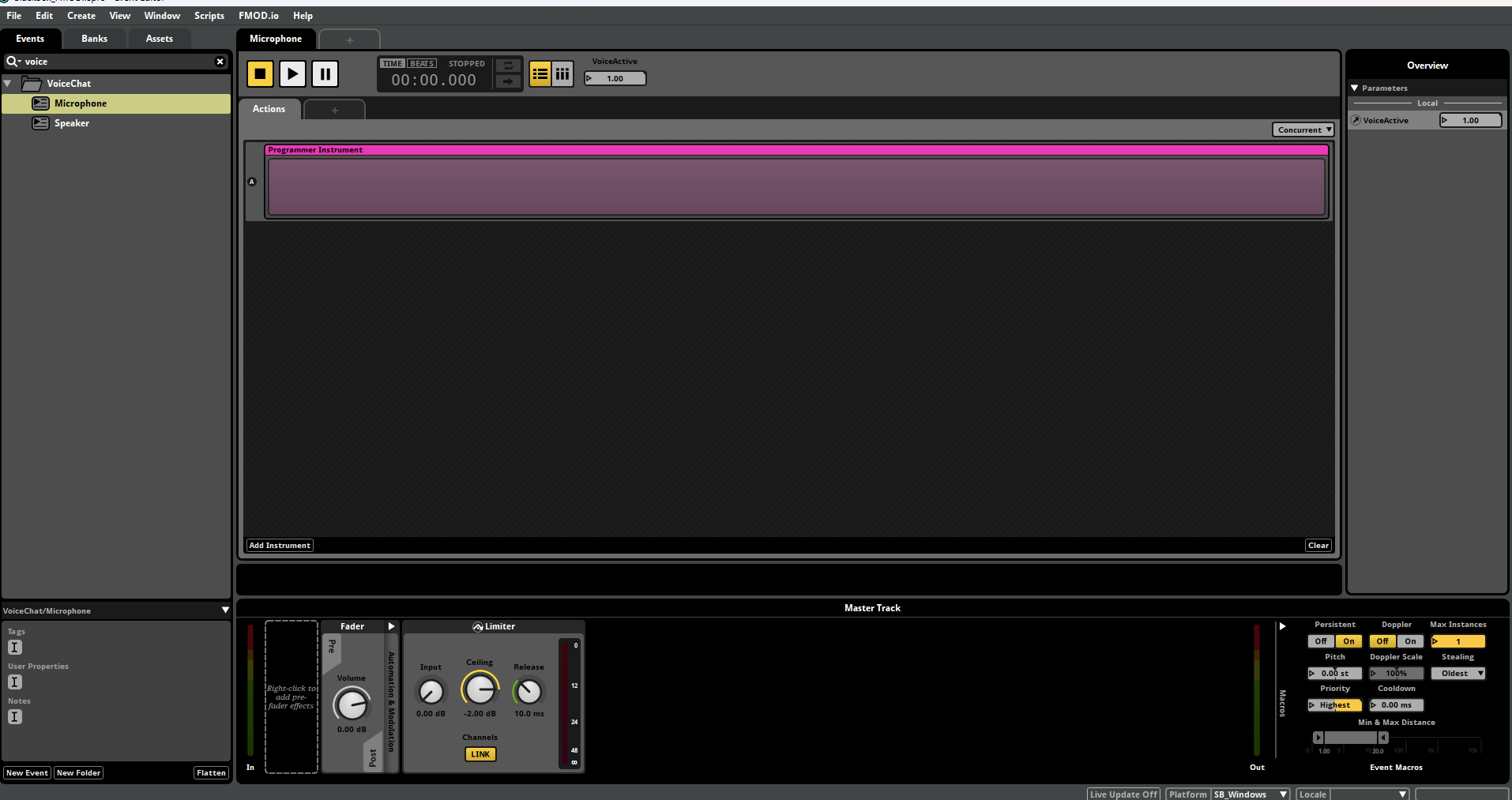
FMOD Microphone Event (Setup as an action).
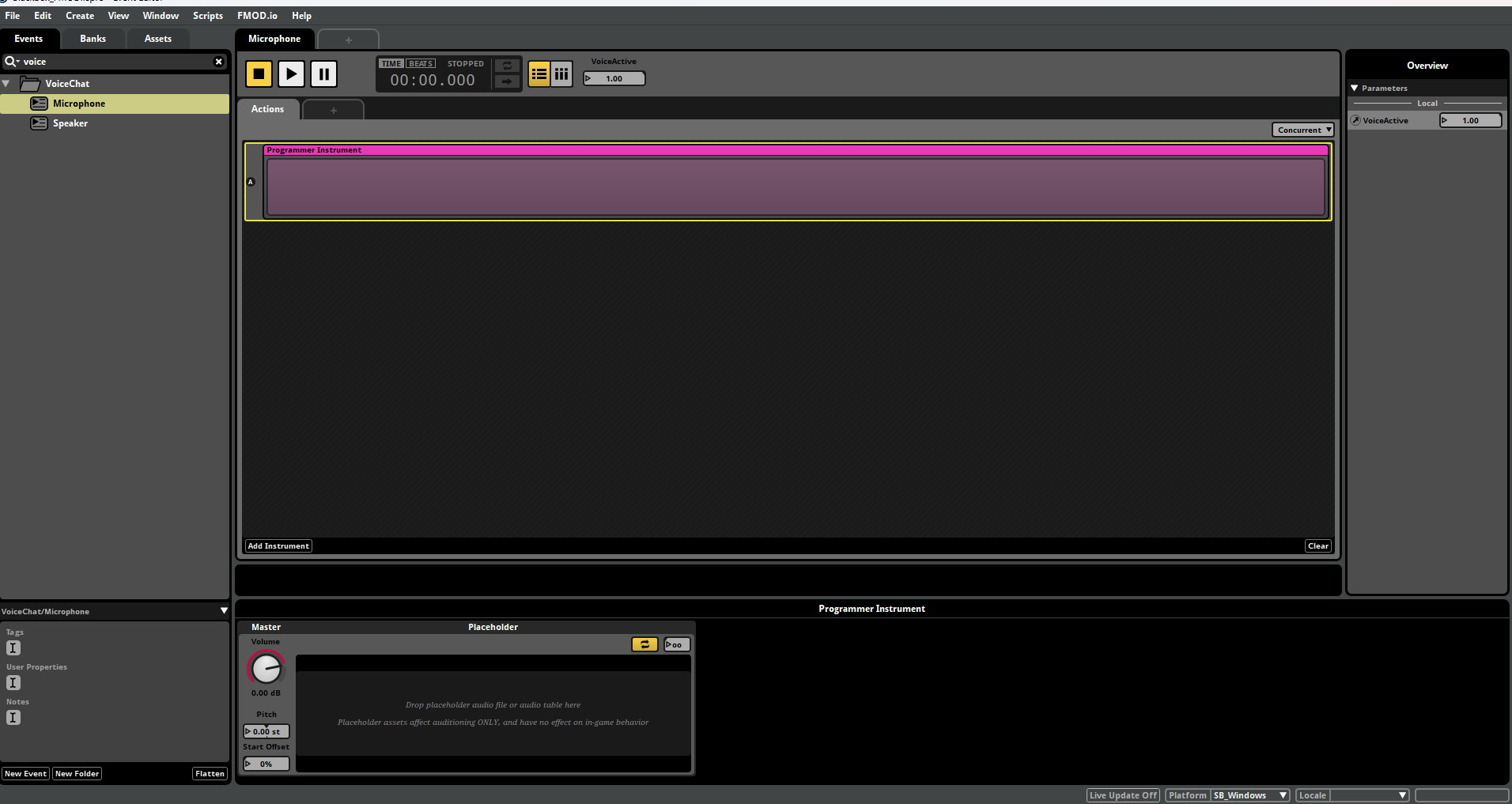
Microphone Event Programmer Instrument (Set to loop).
Critical Detail: Pre-Fader Gain vs Post-Fader Volume
Important: Use a Gain plugin to mute the recorder signal, NOT the channel fader. Here's why:
Using the post-fader volume disables audio processing entirely in FMOD when muted for everything pre-fader
The Gain plugin (pre-fader) keeps the signal chain alive while muting the output
This allows you to tap the signal via a send before it's muted
The send goes to a return bus for local monitoring
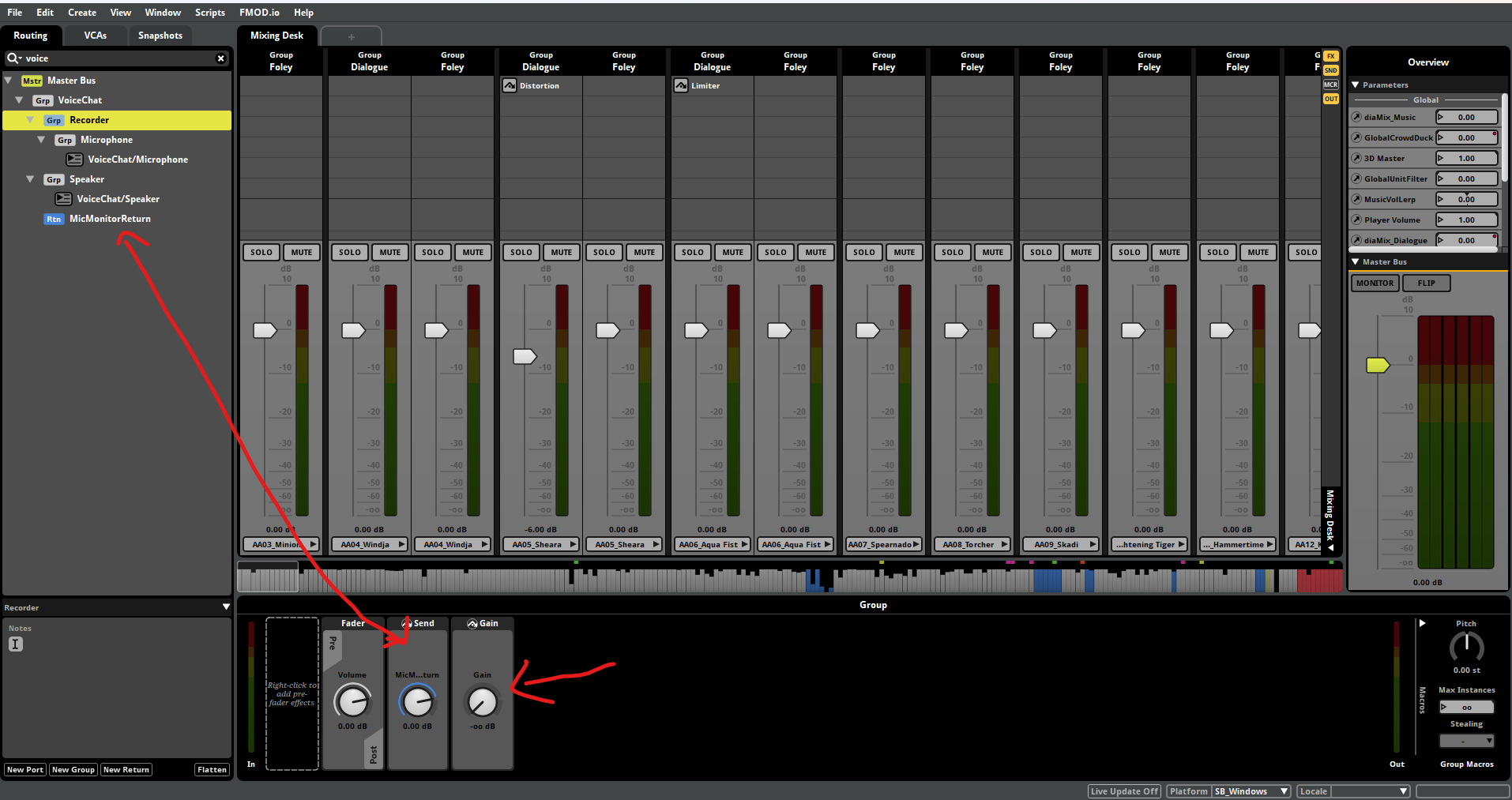
Monitoring/Feedback Control
To allow players to hear themselves (optional, see image above):
Create a Return Bus for monitor audio
Add a Send from the microphone group before the muting Gain plugin
Control monitor level via the Return Bus fader or VCA
The main signal remains muted via the Gain plugin
Speaker Signal Path
Programmer Instrument Event - Receives voice from other players
3D Spatializer (optional) - For positional audio
Group Bus - Routes through mixer
Multiband EQ - Voice clarity (cut below 80Hz to remove boom an unnecessary noise)
Limiter - Prevents clipping from voice peaks
Master Output - Mixed with game audio
Signal Routing Decision: Where Does Photon Listen?
The custom implementation reads directly from the event before it hits the group bus. This means:
Processing within the event (compression, EQ, pitch) is captured and transmitted
Processing on the group bus (sends, reverb) is NOT transmitted
This gives you control over what gets sent vs what's local-only
The Custom Event-Based Reader
Architecture Overview
The FMODMicrophoneEventReader is the core innovation. Here's how it works:
public class FMODMicrophoneEventReader<T> : IAudioReader<T>
{
    // Dual sound system
    private AudioDataBundle _dataBundle;

    private class AudioDataBundle
    {
        public Sound Recorded;      // Captures from FMOD recording device
        public Sound Manipulated;   // Assigned to programmer instrument
        public float[] DataBuffer;  // DSP processing buffer
    }

    // FMOD Event integration
    private EventInstance _eventInstance;
    private EVENT_CALLBACK _soundEventCallback;
    private DSP_READ_CALLBACK _dspReadCallback;
}
Why dual sounds?
Recorded - Captures microphone input via FMOD's recording system
Manipulated - Assigned to the programmer instrument in the event
This separation allows DSP processing between capture and playback
Initialization Flow
public FMODMicrophoneEventReader(
    FMODLib.System coreSystem,
    EventReference eventRef,
    int device,
    int suggestedFrequency)
{
    // 1. Validate parameters
    // 2. Initialize device info
    // 3. Create recording sound
    _coreSystem.createSound("Photon AudioIn", MODE.OPENUSER | MODE.LOOP_NORMAL,
                            ref exinfo, out _dataBundle.Recorded);

    // 4. Start recording from device
    _coreSystem.recordStart(device, _dataBundle.Recorded, true);

    // 5. Create manipulated sound for event
    _coreSystem.createSound("EventRec", MODE.OPENUSER | MODE.LOOP_NORMAL,
                            ref exinfo, out _dataBundle.Manipulated);

    // 6. Setup DSP buffer
    _coreSystem.getDSPBufferSize(out var bufferLength, out _);
    _dataBundle.DataBuffer = new float[bufferLength * bufferMultiplier];

    // 7. Create event instance with callbacks
    _eventInstance = RuntimeManager.CreateInstance(eventRef);
    _eventInstance.setUserData(GCHandle.ToIntPtr(_dataBundleHandle));
    _eventInstance.setCallback(_soundEventCallback);
    _eventInstance.start();
}
The Programmer Instrument Callback
This is where the recorded audio is assigned to the FMOD event:
[AOT.MonoPInvokeCallback(typeof(EVENT_CALLBACK))]
private static RESULT EventCallback(EVENT_CALLBACK_TYPE type, IntPtr instancePtr, IntPtr parameterPtr)
{
    var instance = new EventInstance(instancePtr);
    instance.getUserData(out IntPtr dataPtr);
    var dataHandle = GCHandle.FromIntPtr(dataPtr);

    switch (type)
    {
        case EVENT_CALLBACK_TYPE.CREATE_PROGRAMMER_SOUND:
            if (dataHandle.Target is AudioDataBundle audioData)
            {
                var parameter = (PROGRAMMER_SOUND_PROPERTIES)Marshal.PtrToStructure(
                    parameterPtr, typeof(PROGRAMMER_SOUND_PROPERTIES));

                // Assign our recorded sound to the programmer instrument
                parameter.sound = audioData.Recorded.handle;
                parameter.subsoundIndex = -1;

                Marshal.StructureToPtr(parameter, parameterPtr, false);
            }
            break;

        case EVENT_CALLBACK_TYPE.SOUND_STOPPED:
            // Clean up when stopped
            if (dataHandle.Target is AudioDataBundle audioData)
            {
                audioData.Recorded.release();
            }
            break;
    }

    return RESULT.OK;
}
This callback is critical - FMOD asks "what sound should play?" and we provide our recording buffer. The event then plays this through its DSP graph, applying any effects in the event.
DSP Read Callback (Optional Advanced Feature)
For real-time processing on the DSP thread:
[AOT.MonoPInvokeCallback(typeof(DSP_READ_CALLBACK))]
private static RESULT CaptureDSPReadCallback(
    ref DSP_STATE dspState,
    IntPtr inBuffer,
    IntPtr outBuffer,
    uint length,
    int inChannels,
    ref int outChannels)
{
    // Get our data bundle from user data
    var functions = (DSP_STATE_FUNCTIONS)Marshal.PtrToStructure(
        dspState.functions, typeof(DSP_STATE_FUNCTIONS));
    functions.getuserdata(ref dspState, out IntPtr userData);
    var objHandle = GCHandle.FromIntPtr(userData);

    if (objHandle.Target is AudioDataBundle obj)
    {
        int lengthElements = (int)length * inChannels;

        // Copy input to our buffer
        Marshal.Copy(inBuffer, obj.DataBuffer, 0, lengthElements);

        // *** PROCESS AUDIO HERE ***
        // Apply custom DSP effects to obj.DataBuffer

        // Copy processed audio to output
        Marshal.Copy(obj.DataBuffer, 0, outBuffer, lengthElements);
    }

    return RESULT.OK;
}
This runs on FMOD's DSP thread at audio rate - perfect for low-latency processing like noise gates or ducking.
Reading Audio for Photon
The Read method delivers frames to Photon Voice:
public bool Read(T[] readBuf)
{
    // Get current recording position
    _coreSystem.getRecordPosition(_device, out uint micPos);

    // Track buffer wraparound
    if (micPos < _micPrevPos)
        _micLoopCnt++;
    _micPrevPos = micPos;

    var micAbsPos = _micLoopCnt * _bufLengthSamples + micPos;
    var nextReadPos = _readAbsPos + readBuf.Length / _deviceInfo.Channels;

    // Only read if we have enough data
    if (nextReadPos >= micAbsPos)
        return false;

    // Lock and copy from ring buffer
    var lockOffset = (uint)(_readAbsPos % _bufLengthSamples * _sizeofT * _deviceInfo.Channels);
    var lockSize = (uint)(readBuf.Length * _sizeofT);

    _dataBundle.Recorded.@lock(lockOffset, lockSize,
        out IntPtr ptr1, out IntPtr ptr2,
        out uint len1, out uint len2);

    // Copy to Photon buffer
    Marshal.Copy(ptr1, readBuf as short[], 0, (int)len1 / _sizeofT);
    if (ptr2 != IntPtr.Zero)
        Marshal.Copy(ptr2, readBuf as short[], (int)len1 / _sizeofT, (int)len2 / _sizeofT);

    _dataBundle.Recorded.unlock(ptr1, ptr2, len1, len2);

    _readAbsPos = (uint)nextReadPos;
    return true;
}
The ring buffer approach ensures continuous capture without dropouts.
Configurable Settings
The implementation uses a centralized VoiceChatManager for settings:
public struct VoiceSettings
{
    // Microphone settings
    public int microphoneRecorderRingBuffer;  // Default: 2000ms
    public int microphoneDspBuffer;           // Default: 8x multiplier

    // Jitter buffer settings
    public int jitterBufferLow;   // Default: 200ms
    public int jitterBufferHigh;  // Default: 400ms
    public int jitterBufferMax;   // Default: 1000ms
}
Why configurable?
Ring buffer size - Larger = more latency tolerance, smaller = lower latency
DSP buffer multiplier - Affects real-time processing capacity
Jitter buffers - Network condition adaptation
FMOD Studio Project Setup
Microphone Event Configuration
Create a new event: Events/Voice/Microphone
Add a Programmer Instrument to the timeline
Set the event to loop (right-click timeline → Loop)
Optional: Add effects to the event (compression, EQ, noise gate)
Route to a new Group bus: Groups/Microphone
Microphone Group Bus Configuration
Pre-fader effects: Additional processing if needed
Send (pre-fader): Route to Groups/Monitor Return at -∞ dB by default
Gain plugin (pre-fader): Set to -∞ dB to mute the direct path
Post-fader effects: None needed (signal is muted)
Monitor Return Bus
Create return bus: Groups/Monitor Return
Add a VCA to control monitor level from game code
Route to master
Speaker Event Configuration
Create a new event: Events/Voice/Speaker
Add a Programmer Instrument to the timeline
Set the event to loop
Optional: Add 3D Spatializer if using spatial audio
Route to a new Group bus: Groups/Speaker
Speaker Group Bus Configuration
Add a Multiband EQ for voice clarity:
High-pass filter: 80-100 Hz (remove rumble)
Presence boost: +3-6 dB at 2-4 kHz (clarity)
De-ess: -2-4 dB at 6-8 kHz (reduce sibilance)
Add a Limiter:
Ceiling: -2.0 dB
Release: 10ms
Prevents clipping from loud voices
Route to master
How the Audio Pipeline Works
Complete Microphone Flow:
FMOD captures microphone input to Recorded Sound
Event callback assigns Recorded to Programmer Instrument
FMOD plays the sound through the event's DSP graph
Effects process audio (compression, EQ, etc. in event)
Event outputs to Group Bus
Send taps signal for local monitoring (pre-mute)
Gain plugin mutes the direct signal
Photon reads processed audio from the event
Photon encodes and transmits over network
Complete Playback Flow:
Photon receives compressed audio from network
Photon decodes to PCM float samples
AudioOutEvent writes to FMOD Sound buffer
Programmer instrument callback assigns Sound to event
FMOD plays through event (with spatializer if enabled)
Event outputs to Speaker Group Bus
EQ enhances voice clarity
Limiter prevents clipping
Master outputs mixed with game audio
Performance Considerations
Use short (PCM16) for microphone input to reduce bandwidth
Use float (PCMFLOAT) for speaker output for better quality
Ring buffer size of 2000ms provides good latency/stability balance
DSP buffer multiplier of 8x handles most processing needs
Jitter buffers should adapt to network conditions
FMOD's MODE.LOOP_NORMAL enables continuous ring buffer operation
Common Gotchas
Don't forget to enable the define: Make sure PHOTON_VOICE_FMOD_ENABLE is set in your project scripting defines
Muting strategy matters: Always use pre-fader Gain plugin, never post-fader volume (this is likely a performance optimization in FMOD that disables processing when a channel is muted)
Event must loop: The programmer instrument event MUST be looped for continuous playback
Monitor feedback: When enabling local monitoring, be careful of feedback loops - always mute the main signal with the Gain plugin
GC handles: Ensure proper cleanup of GCHandle allocations to prevent memory leaks
Callback marshalling: Use [AOT.MonoPInvokeCallback] attribute for IL2CPP compatibility
Troubleshooting
No audio playing
Check that PHOTON_VOICE_FMOD_ENABLE is defined in your project settings
Verify the programmer instrument event is set to loop
Ensure the event reference is properly assigned in the inspector
Check FMOD profiler to see if the event is running
Hearing myself (local feedback)
Check that the Gain plugin on the microphone bus is set to -∞ dB
Verify the monitor return bus is muted by default
Ensure you're not accidentally routing the mic signal to master
Choppy or distorted audio
Increase ring buffer size in VoiceChatManager settings
Increase jitter buffer values for worse network conditions
Check FMOD DSP buffer size (should be 512 or 1024 typically)
Verify sample rates match (48kHz recommended)
Check CPU usage - DSP thread may be overloaded
Crashes in callbacks
Ensure GCHandle is allocated before event starts
Check that GCHandle.Target is the correct type before casting
Use defensive null checks in all callback code
Never throw exceptions in callbacks - log and return OK
Memory leaks
Always call Dispose() when cleaning up
Free GCHandles in the DESTROYED callback
Release all FMOD sounds and event instances
Stop recording before releasing sounds
Advanced: Spatial Audio
The custom FMODSpeaker supports 3D spatial audio:
// In your FMODSpeaker component
spatialSpeaker = true;  // Enable in inspector
This attaches the FMOD event instance to the GameObject, enabling:
Distance attenuation - Volume decreases with distance
3D panning - Sound position based on GameObject location
Occlusion/obstruction - If configured in FMOD event
Doppler effect - If configured in FMOD event
Configure spatializer settings in the FMOD event:
Add 3D Spatializer to the event
Set Min/Max distance curves
Configure Sound size for realistic positioning
Add Occlusion parameter if needed
Summary
This custom FMOD integration for Photon Voice provides professional-level control over voice chat:
Key innovations:
Event-based architecture for full mixer integration
Dual-sound system with DSP callback support
Configurable buffers for performance tuning
Spatial audio support for 3D games
Robust error handling for production use
The signal flow:
FMOD records microphone → Event processes → Photon transmits
Photon receives → Event plays → FMOD mixes → Master output
Critical mixer technique:
Use pre-fader Gain plugin to mute while keeping processing alive
Send pre-mute signal to return bus for optional monitoring
Apply effects within the event for transmitted processing
Apply effects on group bus for local-only processing
This architecture ensures your voice chat sounds professional, integrates seamlessly with your game audio, and gives you complete control over every aspect of the signal flow.
Resources
Source Code:
Assets/Audio/Voice Chat/Scripts/FMODMicrophoneEventReader.cs - Custom event-based reader
Assets/Audio/Voice Chat/Scripts/FMODRecorderSetup.cs - Recorder setup component
Assets/Audio/Voice Chat/Scripts/FMODSpeaker.cs - Enhanced speaker component
External Documentation:
This post covers a custom FMOD integration for Photon Voice with event-based architecture, DSP callbacks, and spatial audio support. For more audio development insights and VR game development content, stay tuned.